
Discover Excel’s Underutilized Capabilities
Written by Christopher Harper, DBA, CPA, MBA. This article was originally published in ‘s On Balance magazine.
You don’t know what you don’t know! Excel is underused — not because it lacks capability but because people may not seize opportunities to leverage its abilities. Given Excel’s vast and evolving capabilities, even seasoned users will find novel use cases.
This article encourages intellectual curiosity by showing how an inquisitive mindset unlocked Excel resources to solve five real-life problems. The focus is not a deep technical dive into specific Excel capabilities; such an article might never end. Rather, I aim to foster a mindset that encourages exploration of possibilities. Each subsequent example conveys a story of someone spinning their wheels before Excel rescued the decision-maker from analytical paralysis. I am confident that these illustrations will inspire you to discover new ways to use Excel for your own purposes.
A professor’s quizzical dilemma
Excel users are lifetime learners. Even if you think you know Excel’s most salient capabilities, you can unearth novel ways to harness its power. Years ago, I decided to drop students’ two lowest quiz scores in a managerial accounting course. I knew that =MIN would provide the lowest quiz score, but I could not find a quick way to reveal the second lowest scores.
Excel is underused — not because it lacks capability but because people may not seize opportunities to leverage its abilities.
After several failed iterations of creatively nested formulas, I sought guidance from an internet search. I discovered =SMALL, which I now regularly utilize. This formula extracts the nth-lowest value from a dataset. Figure 1 shows the resultant gradebook (with fictional student names) and the formula that rescued me. For example, =SMALL(C5:N5, 2) efficiently revealed each student’s second lowest quiz score (the 2 in the formula denotes the second smallest value).
Beyond mitigating inevitable human error spawned by a redundant task, =SMALL helped me curtail the opportunity cost of manual analysis. I encourage you to pursue similar opportunities. When you encounter a repetitive task, seek ways that Excel can reduce your workload while enhancing accuracy.
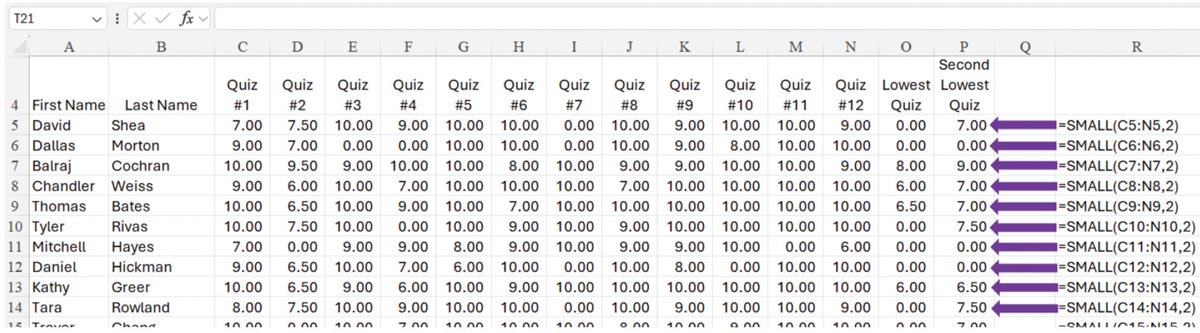
Figure 1
Necessity is the origin of invention
Your greatest successes will occur when you leverage intellectual curiosity to devise a solution. I once tackled a problem encountered by a CPA firm’s administrative professional who needed to curtail a list of prospective clients according to geographic parameters. Ultimately, we leveraged Excel’s ability to provide real-time geographical data. Figure 2 is an adaptation of our analysis; we used Excel to identify the latitude and longitude of the target boundaries (corners of the rectangle in Figure 2) and then to determine if specific business addresses were inside or outside the box.
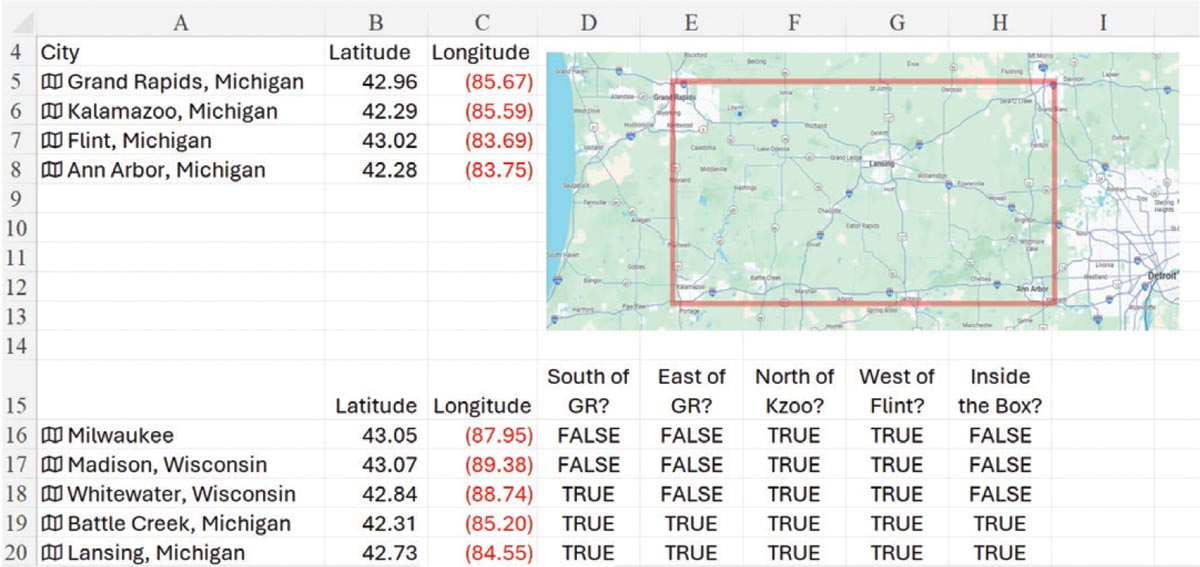
Figure 2
To accomplish this analysis, we informed Excel that the data was geographic. When you have a list of locations (such as the cities in this example), you can transform the data from a static list to dynamic variables by highlighting the list and then clicking on the trifold map “Geography” icon found in Excel’s “Data Types” menu (illustrated at the top of Figure 3). As depicted in Figure 3, we extracted latitude and longitude. But you will undoubtedly identify ways to utilize myriad other options. I encourage you to play in the sandbox so you can fully appreciate ways to utilize the array of possibilities shown in Figure 4. This scenario converted a daunting task into an educational opportunity; adversity is a strength coach that transforms seemingly insurmountable problems into growth potential.
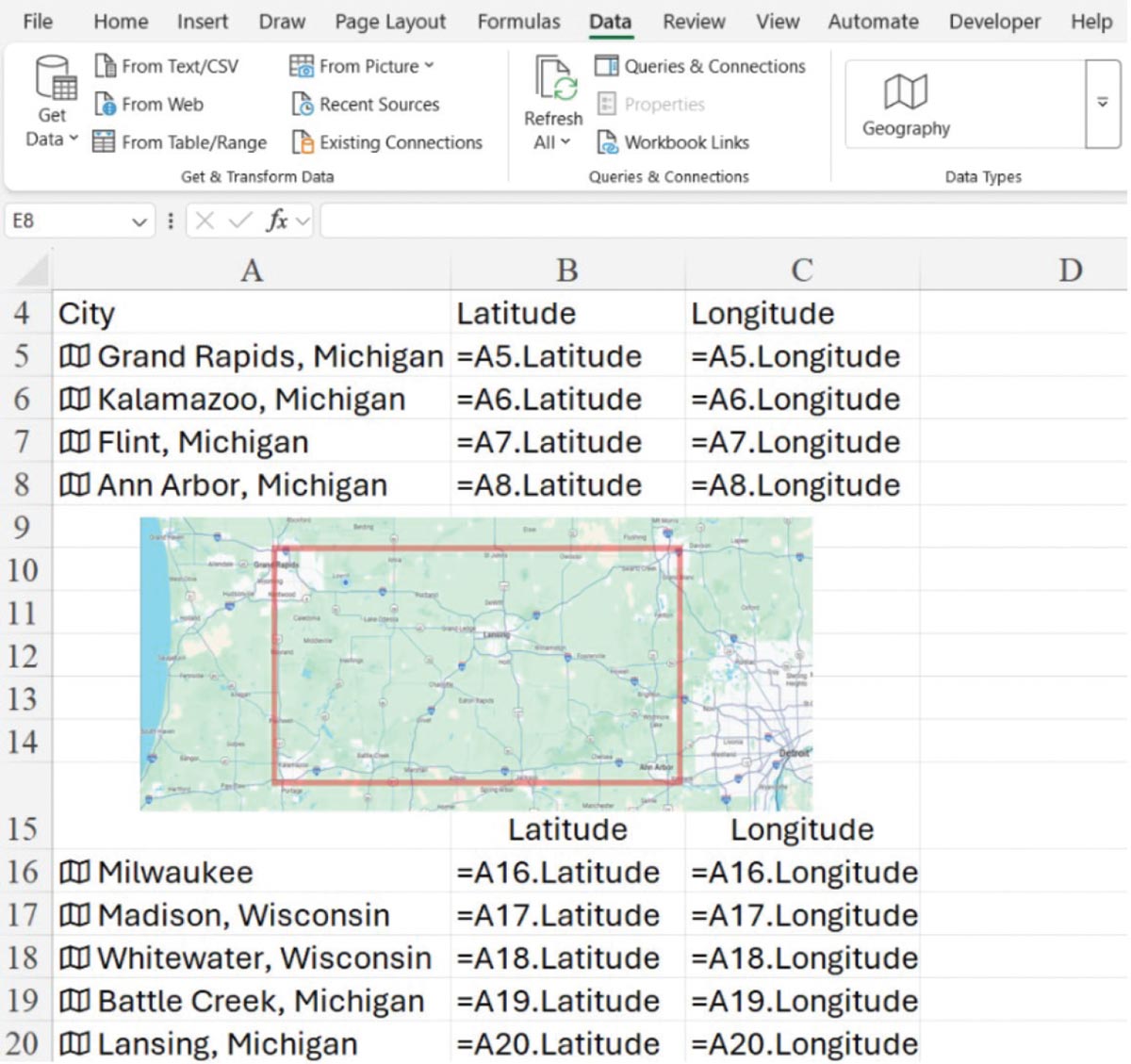
Figure 3
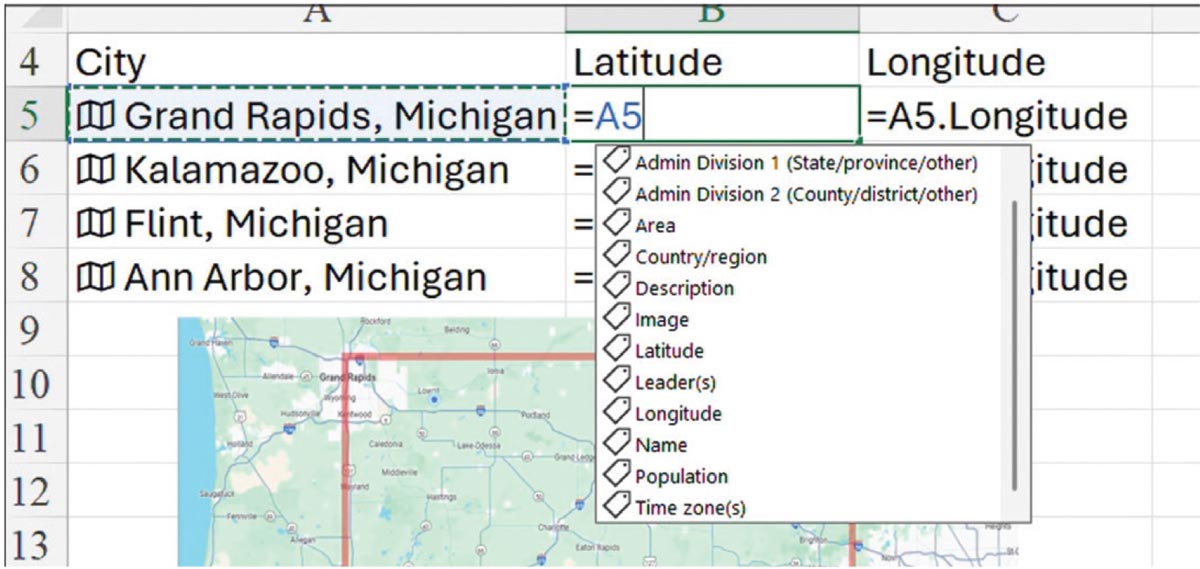
Figure 4
Preserving harmony
Lunch with a retired banker reminded me that even seasoned professionals may not be aware of possibilities. After a lengthy career in commercial lending, Scott transformed an avocation into his vocation by focusing on a small radio station group that he owns. During a post-lunch tour of his studios, I learned that Scott planned to manually compare Windows file lists with an Excel-based music catalog, a project that would consume his spare time for the next few months. He needed to verify that Excel data agreed with thousands of MP3 song files saved in various Windows folders, an example of which is shown in Figure 5.
I quickly noted an opportunity to accelerate this process. Instead of requiring multiple months, we reconciled the data in approximately two hours! First, I used a Windows script to list the contents of each Windows folder on his PC. Figure 6 depicts an example of the Windows command script (dir /b “E:\Jethro Music File Analysis\On Deck Circle”) and a portion of the resultant music file listing contained in his “On Deck Circle” folder. For each folder, we copied Windows file names gleaned from the script, pasted them into Excel and then leveraged =XLOOKUP to determine if MP3 titles in the Windows folder agreed with the Excel catalog. Thrilled with the outcome, Scott noted, “Music, not Excel spreadsheets, keeps my audience listening to the radio stations.” Solving this puzzle entertained me while creating value for a small business. If a seasoned banker learned new techniques, just envision what hidden opportunities exist for your clients or your company.
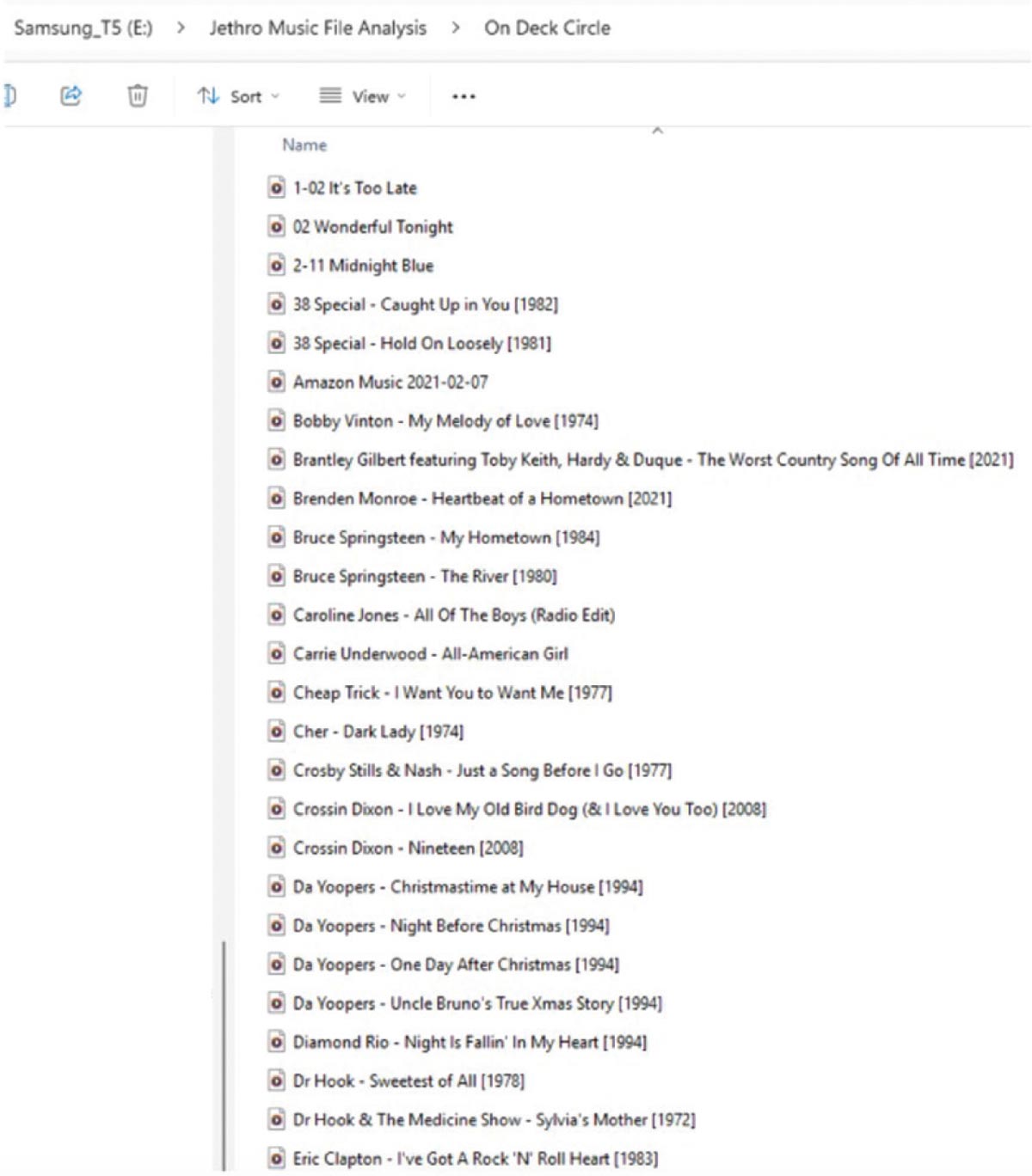
Figure 5
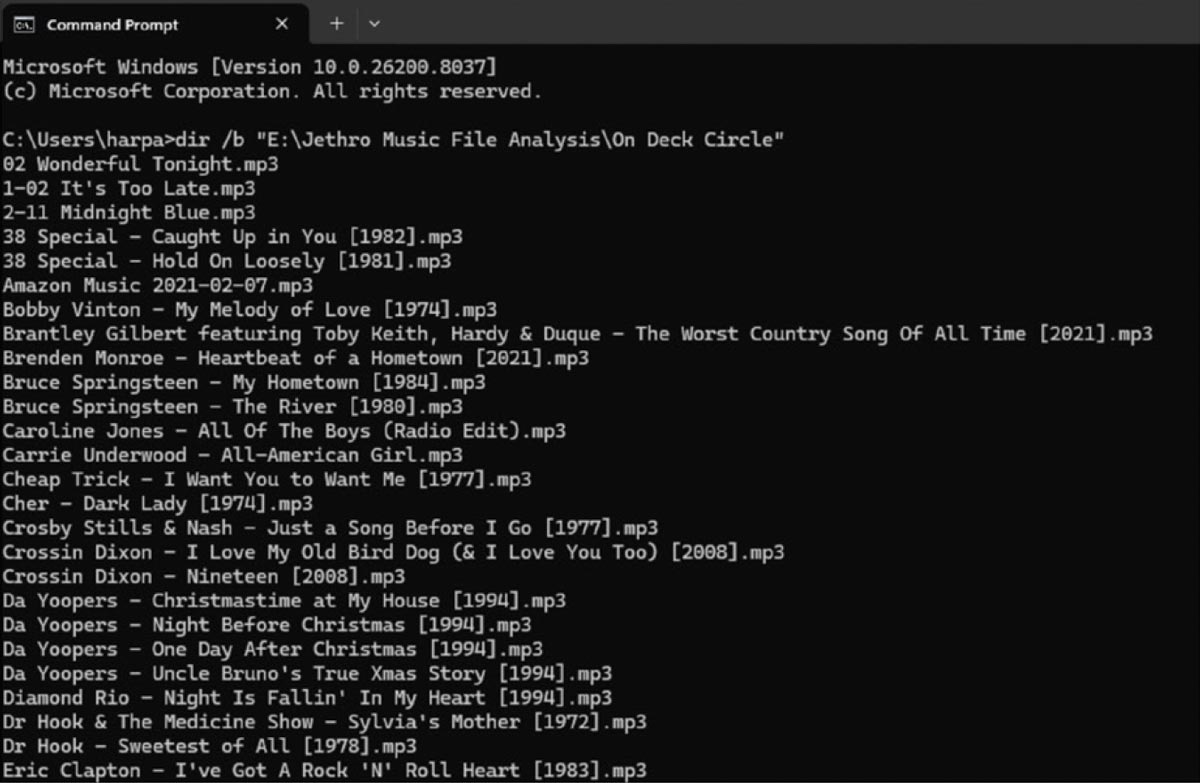
Figure 6
Eyes on the prize
My journey with Solver began with nontraditional inspiration. A friend implored me to join his NASCAR fantasy league. Since I knew very little about NASCAR nuances, I built an Excel Solver model that analyzed historical, track-specific driver placement data in concert with the fantasy league’s rules. Solver ultimately identified the most appropriate driver selection for each weekly NASCAR venue. Although I did win second place in my inaugural season, Solver won first place by optimizing my multivariate analysis. A detailed depiction of the Solver model is beyond the scope of this article. However, I briefly share this story to encourage you to brainstorm unique ways that Solver can optimize outcomes in accordance with constraining parameters.
Sometimes superheroes don’t wear capes
Just as good meals often end with dessert, I offer a tasty conclusion to our discussion. During a vacation in Michigan’s upper peninsula, my family wanted to play the Scattergories game, but we did not have the multisided die that players roll to determine a particular letter of the alphabet.
Would you believe that Excel rescued us? Figure 7 shows the impromptu model I created to generate random numbers between 1 and 26 and the =XLOOKUP formula that revealed a letter associated with the resultant integer. I turned Excel into a random letter generator! Pressing F9 to force recalculation was akin to rolling the die for each player’s turn. Applied creativity allowed me to save the day (even if I still don’t get to wear a superhero’s cape).
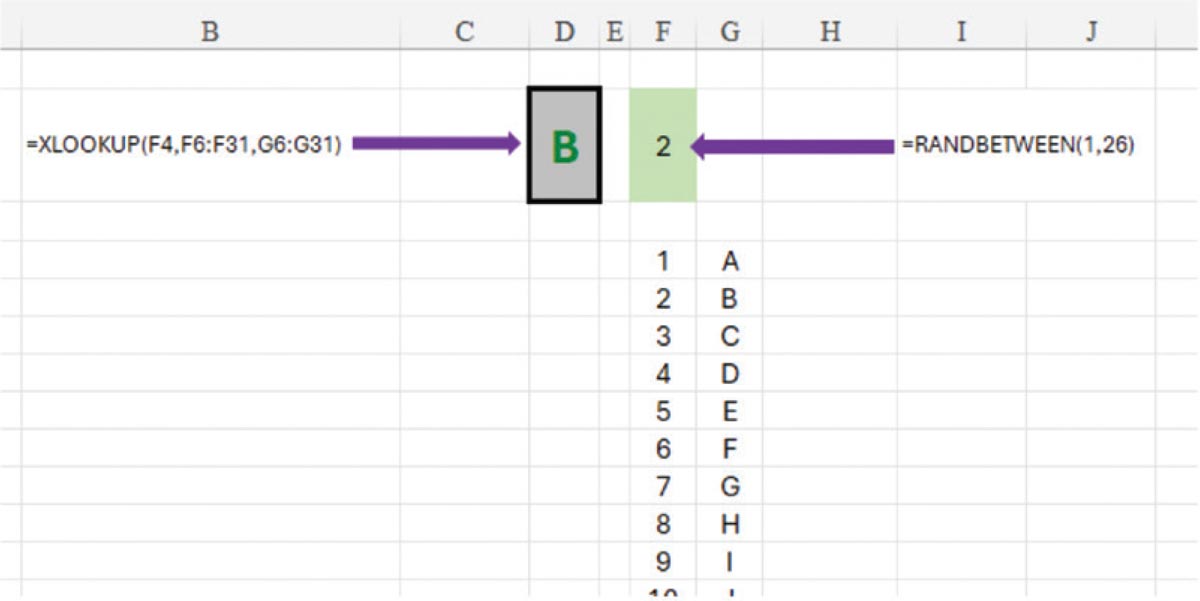
Figure 7
Concluding thoughts
If you remember nothing else, know that intellectual curiosity is paramount. When you find yourself trudging through manual analysis, realize that Excel can reduce your burden if you consider creative options. I hope these five stories inspire you to find unique ways to utilize Excel for purposes you had not previously conceived.
Can Excel create opportunities to enhance efficiency and effectiveness? The answer will always be “no” if you don’t explore possibilities. However, if you ask the question, the answer might just be “yes.” So, ask!
Christopher Harper, DBA, CPA, MBA, is an assistant professor of accounting with Grand Valley State University’s Seidman College of Business. He also serves as a senior manager and director of education for Hungerford CPAs + Advisors. He has been serving tax and accounting needs of closely held businesses and individuals since 1998. He has also owned and operated several of his own businesses throughout his career. Contact him at harpechr@gvsu.edu or 616-331-7384.